Give animations to objects in VRChat
The objects you import MUST have animations, else this won’t work.
In Unity
First import your model by copying the files to your Unity project.
When the object is imported, click on it. on the top right, click on Animations.
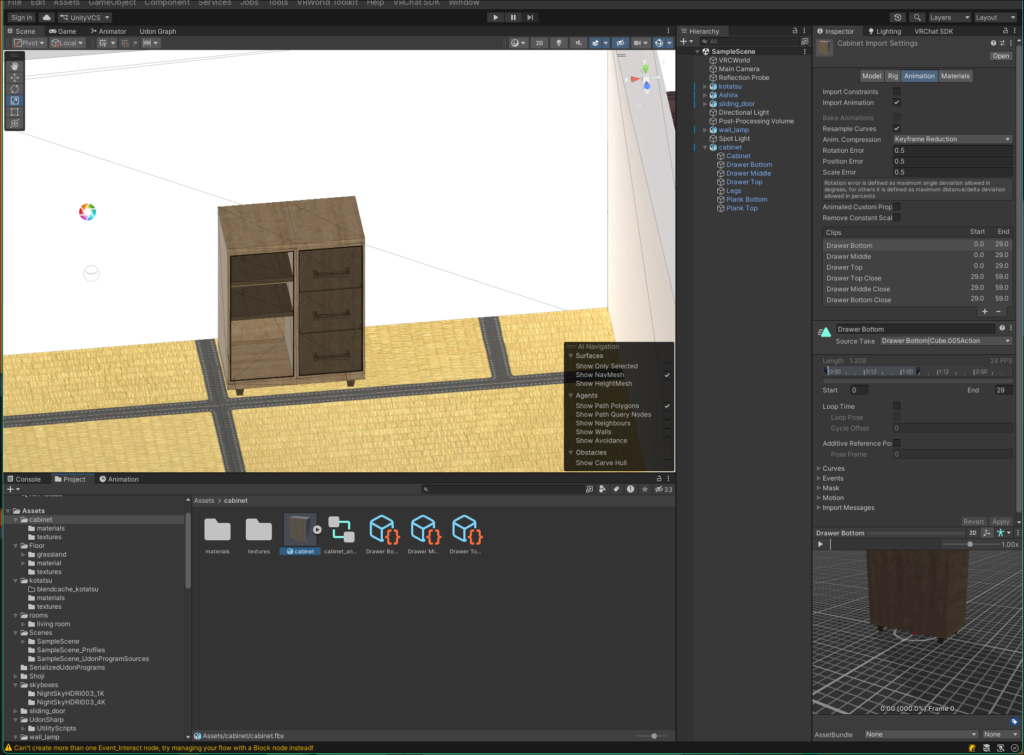
If your animations have end animations, make them separately on the right side by entering another starting frame and end frame. You can also rename them here.
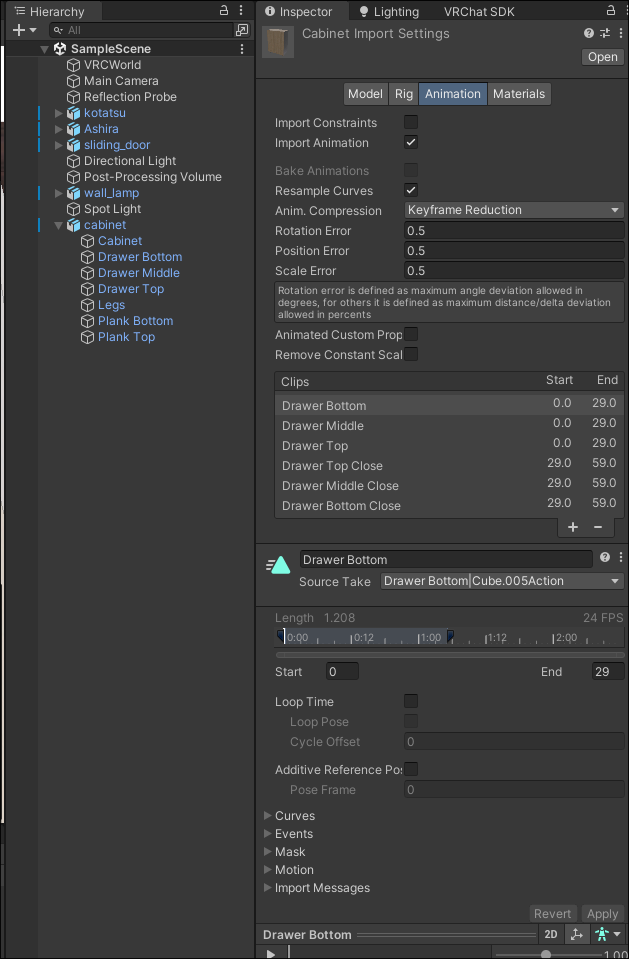
Make a new animation.
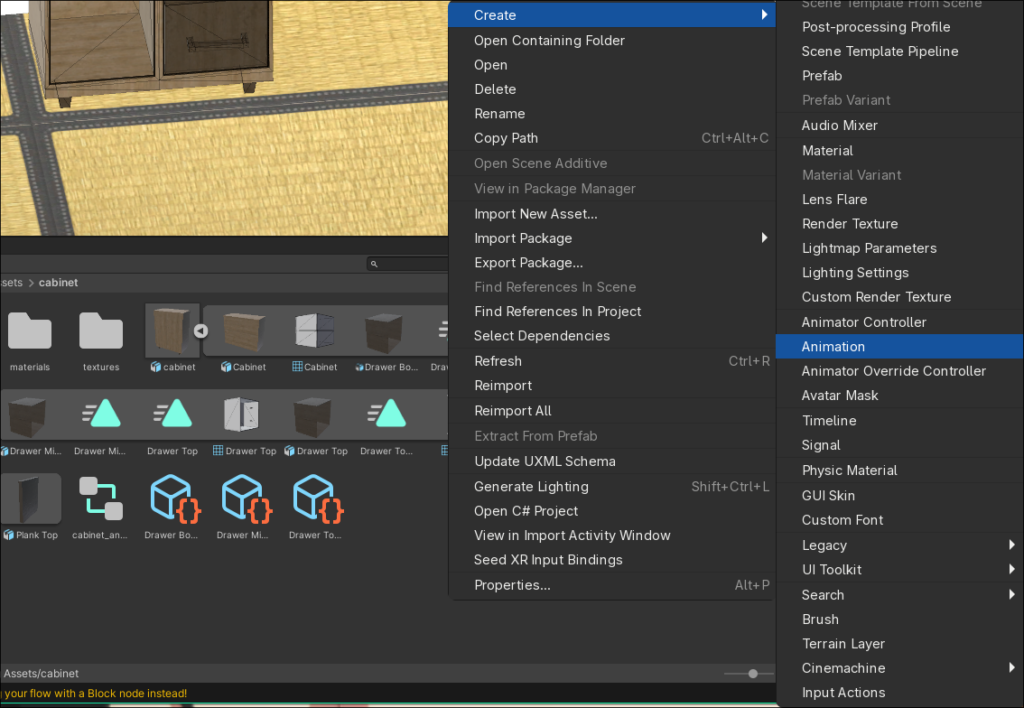
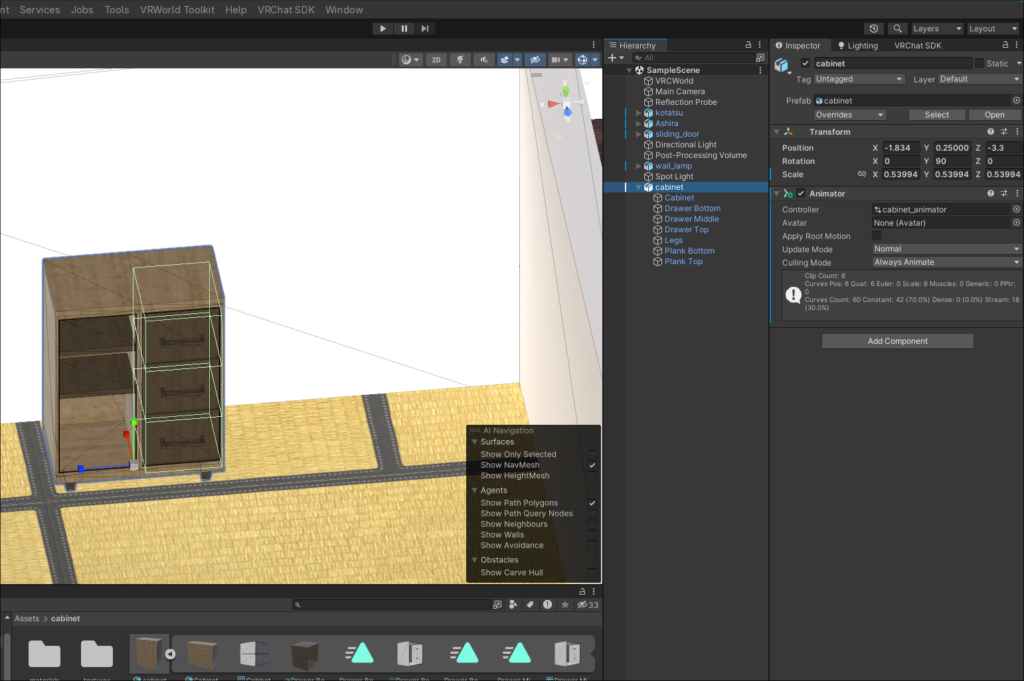
Add the animator to the object you just made.
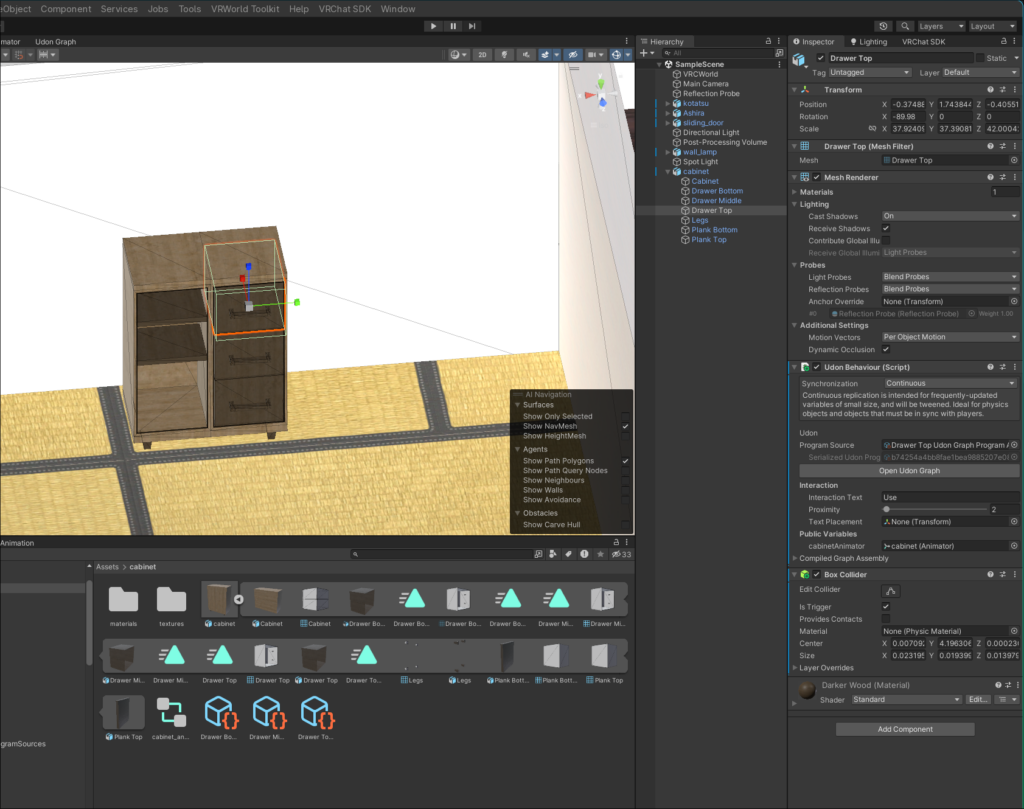
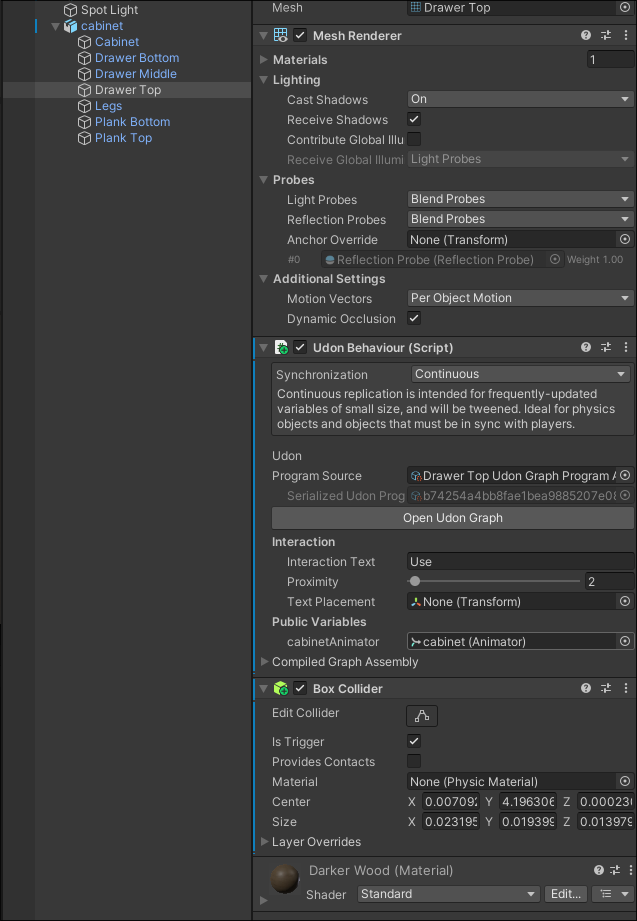
Then add a Box Collider and an Udon Behavior Script to the thing you want to animate.
Make sure to select Is Trigger under the Box Collider.
Then make a Udon Script like the one shown below. Make sure the variables are public on the top-left.
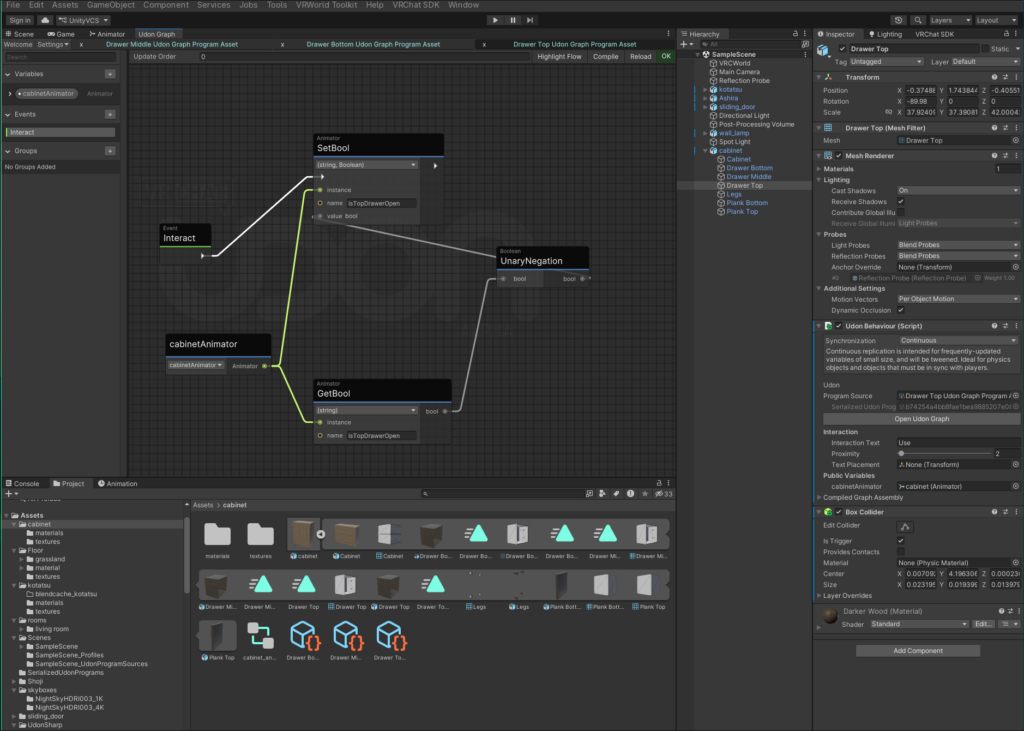
application/vnd.unity.graphview.elements AOWW307bMBjFX6XydVw5/u9KXGyDTWgSTAJ6M1WV7XxB2VKnyh9YBXuyXeyR9gpzaemgdKgCKjFNyU0SJz0nv++c9NePn1fowpYdoMHnK5R3ZXlkJ/EADW1dWFfC+CwU7ewgnBcB3oRiYtuqRgnqiiwukioX0guOvdMMc8IcNsZKLBwzkjPmtJRx8bRqiraoAhpcoW9ogAXhfZKgGRoo0zeUkJRxqhTjTH9PUKgyODvcb6IiFG/+s48SlJfV5fLaaLFyOBff3Kjv5kqP3Rfw7XBh6QoVoWlt8HC4jwYkPrxp6yKcLy8j9D15ym0ns6aFSf/k5mTSmzS+qsvCJb0h1E30uRftzbek964r266GvQBdW9sy6X3qXFn4jzA7rb5C2HNKWeGFTA3jQLS59tbFF92u3vSzBL6tqhJseFmFp3X8idcn670tm2fq2gXPUIWoajTXdSdcBxcQ2vFhaKG2vl3FiWlKpREZzpWgmAsvsWPWYOMySUmMVEb8hjgxYpZxwjKqVMZoKVR8lJB0LVD3I4Sc5CSjnGNqhcTca461dYAd9TQ3WWpN7tF60NbNfIB2fNsWKyu59BlYJzAIrzB3TmJDvMdgATRITSDVG6xQo5dWUp72ozqScsk1Z0qsN8PLt8EOx2Cronza8D6crg2N3R+PI6Z58Mbjhc2Fy9ujZSRX+DLKMiGJxdJLwNxCji1ohRWTuWGexQGjm/CpJT1K+ePFvs18XJP/pfWL5rSa7tf2EurjKYSHSO9RijCrafwu23p2BOd2DmCN41+xOk1ynUvMRGYwzyjFznCCM1CSCsMz5dRDrHf6JdV9ca9f5BrXbQYnct1ZeHf5bdkuZycbc7YRz7CKVG7ZbNXFj0QOv2Dmkq0mZScc/4Fwvtb/PqO4/QY=After creating the udon graph, set the variables in the scene editor on the udon graph to the object that has the animator.
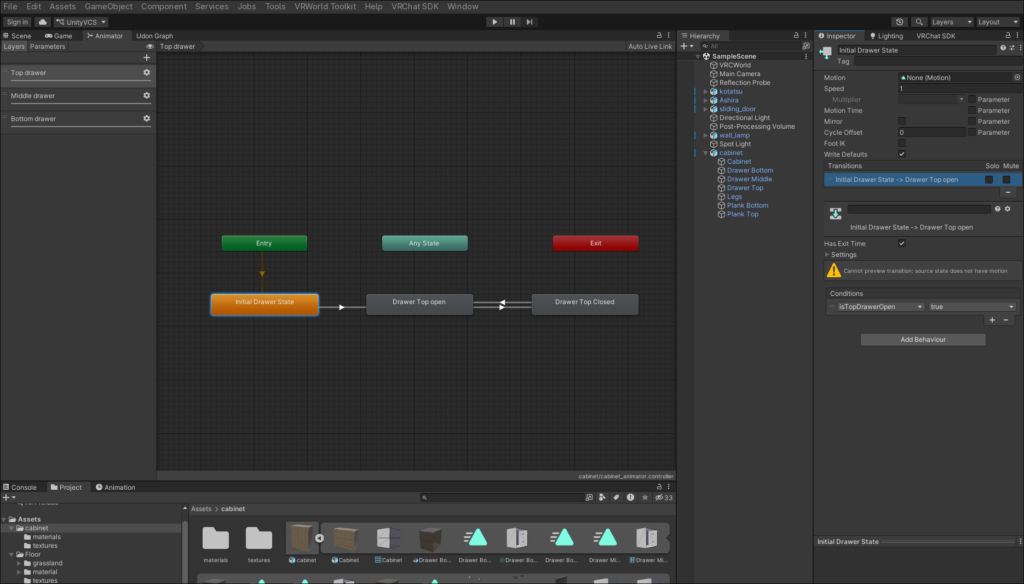
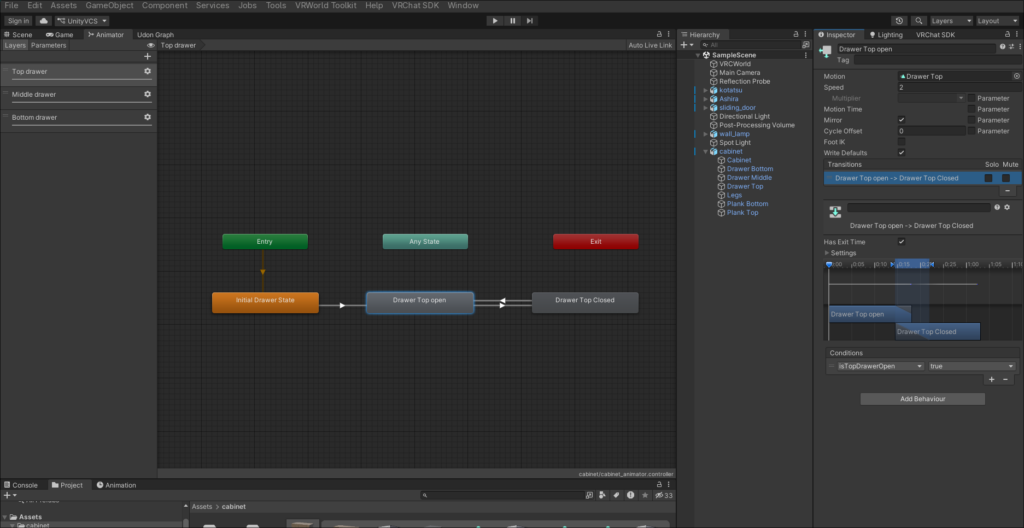
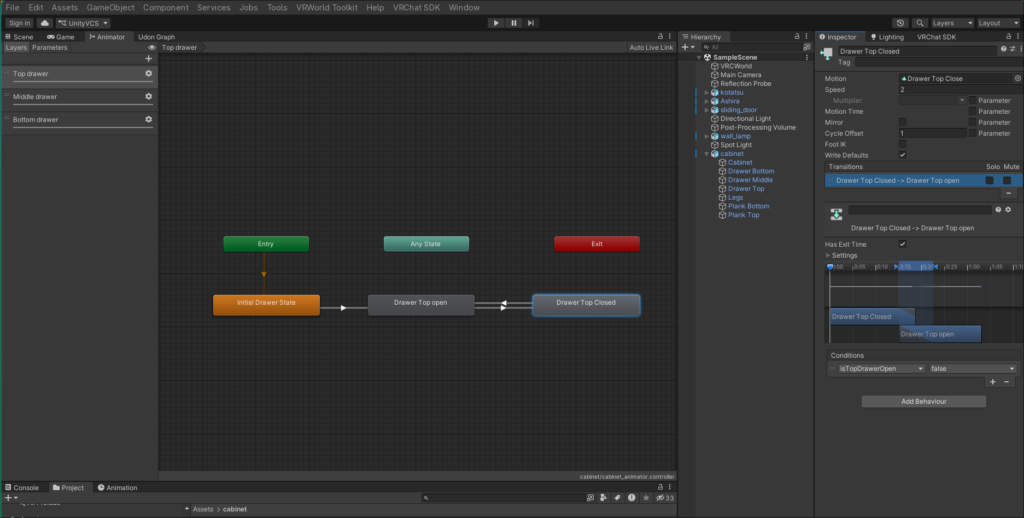
Now go to the Animator and take over the following settings.
Filed under: Uncategorized - @ July 10, 2026 2:17 pm